
Search & Replace Field Codes in Microsoft Word
If you’ve ever needed to replace plain text with field codes in a large Microsoft Word document, this method saves hours. This guide shows how to use Word’s Find and Replace with clipboard field codes safely and correctly.
Step 1: Create or Locate the Field Code
Find a single instance of the field you want to use. If you do not have one yet, create one so you can get the correct codes.
Step 2: Make Field Codes Visible
Make sure Field Codes are visible in your document.
Step 3: Copy the Field Code
Find the code in your document and copy it to the clipboard.
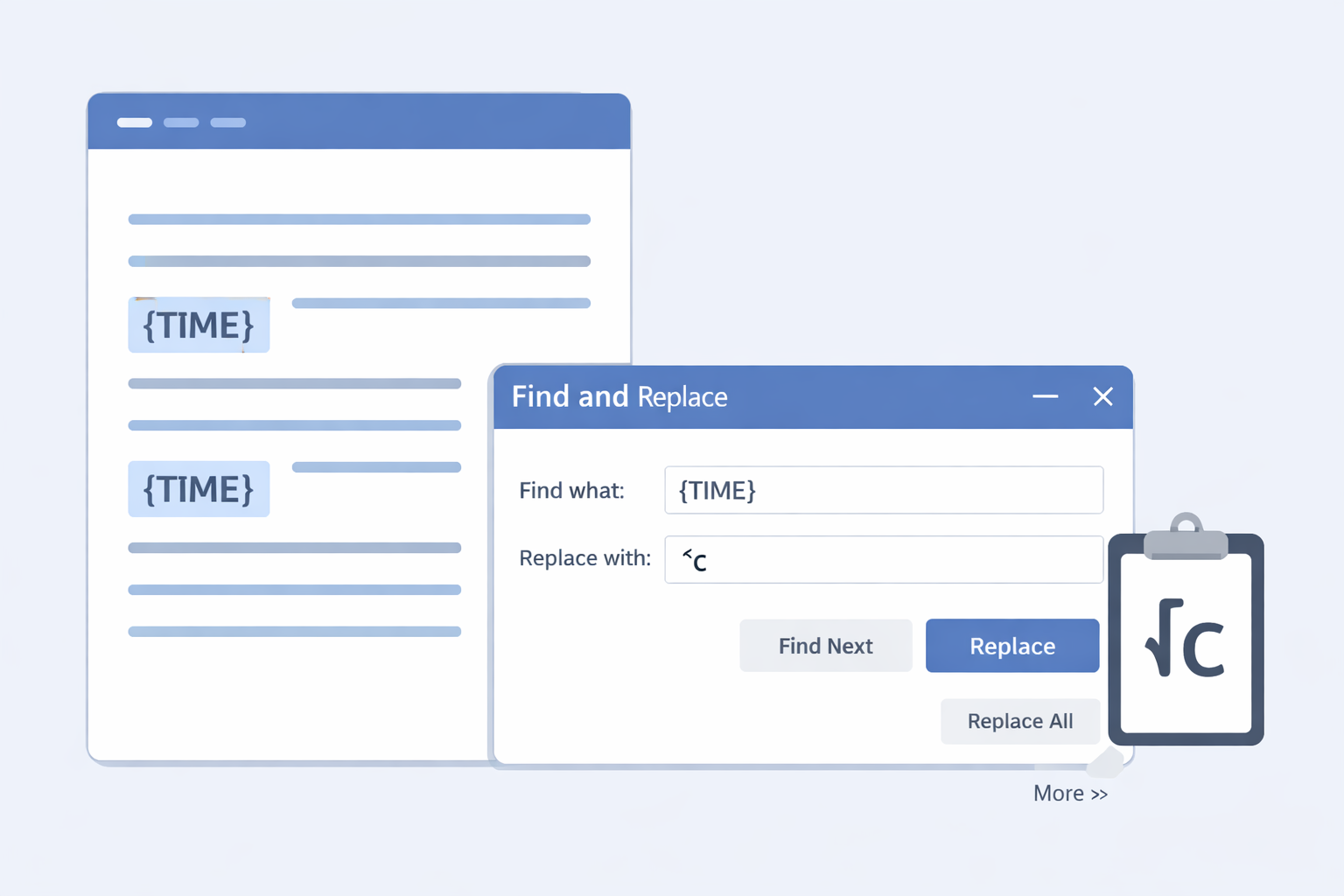
Step 4: Use Find and Replace with ^c
Open the Replace dialog box, insert the text you want to replace in the Find what box, then type ^c in the Replace with field (do not type quotation marks).
Step 5: Verify the Results
This will replace your text with the contents of the clipboard. Verify results and formatting, especially in large documents.
Last updated: 2025